# Train Documents

Training Area is the central place to process training after feedback is submitted during testing.

<div data-with-frame="true"><figure><img src="/files/6ZGQNArJ1pLIdl5vfrGI" alt=""><figcaption></figcaption></figure></div>

{% stepper %}
{% step %}

### Review Tickets or Add Manual Feedback

**Purpose:** Decide how to review and correct bot behaviour.

Review tickets in several ways:

* Use the [Status Filter](#status-filter) to narrow results.
* Select a ticket from [Ticket List](#ticket-list) for a focused review.
* Open the [Training Panel](#training-panel) to manage tickets in one place.

<div data-with-frame="true"><figure><img src="/files/BwMCou3C961WCbzTfelf" alt=""><figcaption></figcaption></figure></div>

<details>

<summary>Status Filter</summary>

**Filter tickets by status**

* Select a status: **Pending, Training, Trained, Failed**.
* This opens the **Training Panel** and applies the same status filter automatically.
* Example: Selecting **Pending** updates the Training Panel to show only Pending tickets.

<div data-with-frame="true"><figure><img src="/files/WRpOcPJsKYcfuFqv7jc5" alt=""><figcaption></figcaption></figure></div>

</details>

<details>

<summary>Ticket List</summary>

**Review individual tickets**

* Shows pending training tickets.
* Select a ticket to view details, then:
  * Review the **user question**.
  * Review the **bot answer**.
  * Review or edit the **training notes**.
  * Train the ticket when ready.

<div data-with-frame="true"><figure><img src="/files/SdMufowDsg7AfqFcj5gf" alt="" width="375"><figcaption></figcaption></figure></div>

</details>

<details>

<summary>Training Panel</summary>

**Manage multiple tickets efficiently**

* Open and manage training tickets in one place.&#x20;
* Use status filters, review tickets, and train multiple tickets without switching views.

<div data-with-frame="true"><figure><img src="/files/1CoxgsNIZa4Ur2oDhhD7" alt="" width="563"><figcaption></figcaption></figure></div>

</details>

#### Add Manual Feedback (if needed)

**Purpose:** Create a new training ticket

1. Use when a correction is needed but no ticket exists yet.

<div data-with-frame="true"><figure><img src="/files/rS0YqHIBGXfQTMYVOljC" alt=""><figcaption></figcaption></figure></div>

2. Enter what needs to be corrected or improved, what the correct behaviour should be, and any supporting context. Select **Submit Training** to proceed.&#x20;

<div data-with-frame="true"><figure><img src="/files/jF7IdN39FnR5k1qYoCFc" alt="" width="375"><figcaption></figcaption></figure></div>
{% endstep %}

{% step %}

### Managing Tickets

1. Select **Open Training Panel**.

{% hint style="info" %}
The [Training Panel](#training-panel) is the **recommended** **place** to manage training, especially when multiple tickets need to be processed.
{% endhint %}

<div><figure><img src="/files/B076w7j9Wyl7ut2ZP4DV" alt="" width="563"><figcaption></figcaption></figure> <figure><img src="/files/sIa3taYfINwE5zkVs9IA" alt="" width="563"><figcaption></figcaption></figure></div>

2. **Filter tickets by Status and Document Type**

   * Use the Status filter to narrow the ticket list before training.
   * Use the Document Type filter to show only uploaded Business Knowledge documents.
   * [Training feedback](/chatlyst-user-guide/train-and-test-bot/training-feedback.md) submitted here is linked to these documents for training and review.

   <div data-with-frame="true"><img src="/files/afcc10ce0bfd612015498461e88b5235b2cdf60c" alt=""></div>
3. **Understand Ticket Status**

<table><thead><tr><th width="136.6953125">Status</th><th>Meaning</th></tr></thead><tbody><tr><td><mark style="color:yellow;">Pending</mark></td><td>Training tickets that still need to be addressed.</td></tr><tr><td><mark style="color:blue;">Training</mark></td><td>Tickets currently being processed.</td></tr><tr><td><mark style="color:$success;">Trained</mark></td><td>Tickets and documents that have been successfully trained.</td></tr><tr><td><mark style="color:$danger;">Failed</mark></td><td>Tickets that failed to train (rare).</td></tr></tbody></table>

4. **Pending Tickets and Related Document Types**
   * **Choose what to train now**
     * Under Status, select **Pending**.
     * Under Document Type, choose the relevant document types.
       * Example: **Company Brand Identity (1 feedback)** and **Ticket Handling Sop (5 feedbacks)**
     * When **All** is selected under Document Type, the number next to Status shows the total of all pending feedback (for example, 6 = 1 + 5).
       * If only **Company Brand Identity** is selected, the count shows 1.
       * If only **Ticket Handling Sop** is selected, the count shows 5.

<div><figure><img src="/files/Tzr8n7jpB0704A7hKQgw" alt=""><figcaption><p>All</p></figcaption></figure> <figure><img src="/files/Ww8AujWiDdzgTeZZ4lRH" alt=""><figcaption><p>Company Brand Identity</p></figcaption></figure> <figure><img src="/files/E89KlNGXoDJS0CiB8N0M" alt=""><figcaption><p>Ticket Handling Sop</p></figcaption></figure></div>
{% endstep %}

{% step %}

### [Training Note Handling](#traning-note-handling)

**Purpose:** Decide how to process the selected tickets.

There are two types of Training Note Handling. Choose either the [bulk-train](/chatlyst-user-guide/train-and-test-bot/training-note-handling.md#bulk-train-operation) or [single-train](/chatlyst-user-guide/train-and-test-bot/training-note-handling.md#single-train-operation) operation based on&#x20;

1. How many tickets need to be processed.
2. How closely each ticket needs to be reviewed.&#x20;

In this example, bulk‑train is used because the tickets can be processed as a group.

{% hint style="info" %}
Follow more on [Training Note Handling](/chatlyst-user-guide/train-and-test-bot/training-note-handling.md).
{% endhint %}

#### Bulk-train operation

1. Select **Train Now** in the top-right of the Training Panel.

<div data-with-frame="true"><img src="/files/e7877173836ea111c1227ea1272c72838a4ad9e6" alt=""></div>

2. In the training window, review the list and confirm the correct Status (for example, Pending) and Document Types are selected.

<div data-with-frame="true"><figure><img src="/files/dqVOlNVwU7SJkn9n1efz" alt="" width="375"><figcaption></figcaption></figure></div>

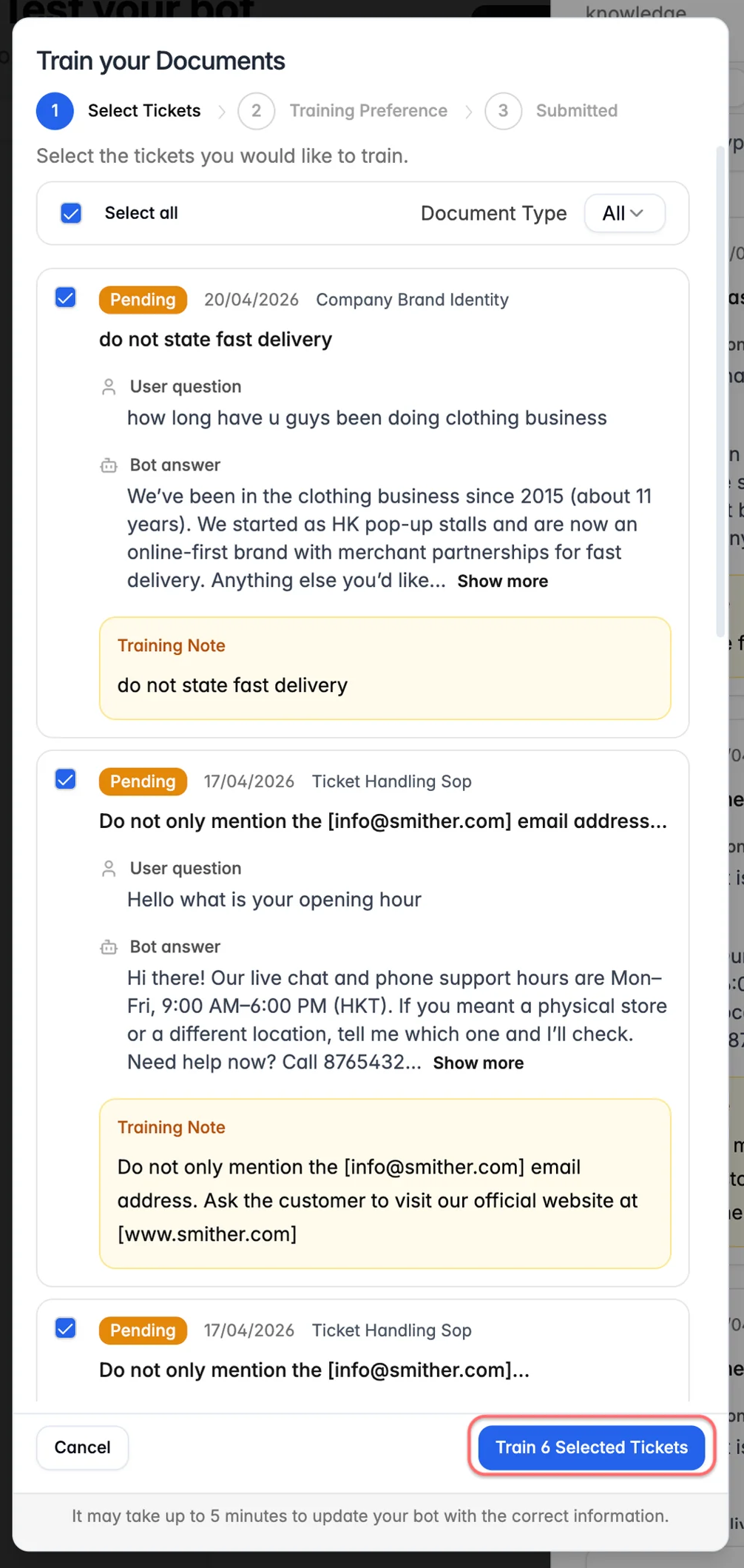
3. Select the tickets to train:
   * Select **Select All**, or
   * Select tickets individually using the checkbox on each row.

{% hint style="info" %}
Adjust document type selection if needed.

![](/files/CP4dbqeSdsRDklMr1nU0)
{% endhint %}

<div data-with-frame="true"><figure><img src="/files/XhiNOu7Ndkcx80vEXrNb" alt="" width="375"><figcaption></figcaption></figure></div>

4. Select **Train X Selected Tickets** (for example, **Train 6 Selected Tickets**) to proceed.

<div data-with-frame="true"><figure><img src="/files/EW0X3wH64PGURbwrocu7" alt="" width="375"><figcaption></figcaption></figure></div>
{% endstep %}

{% step %}

### [Training Method](#training-method)

**Purpose:** Choose how the documents will be trained.

There are two methods you can use to train documents. Choose either the [Send to KC Bot Training (Recommended)](/chatlyst-user-guide/train-and-test-bot/training-method.md#send-to-kc-bot-training) or [Manual Training](/chatlyst-user-guide/train-and-test-bot/training-method.md#manual-training). Follow more on [Training Method](/chatlyst-user-guide/train-and-test-bot/training-method.md).

In this example, **Send to KC Bot Training** is used because it updates Business Knowledge in a guided and consistent way and reduces the risk of training the wrong document or adding unintended wording.

#### Confirm Processing with KC Bot

1. Review the summary, including KC Bot Credits and Document Types.
2. Select **Confirm & Process** to start processing.

<div align="center" data-with-frame="true"><img src="/files/801abcb9c5e244fd6406921f27fc5283f9484788" alt="" width="375"></div>

{% hint style="warning" %}
**Important Note**: KC Bot Credit is short for Knowledge Consolidation Bot Credit. These credits are used when processing training for Business Knowledge documents. How are they charged? KC Bot Credits are calculated based on the number of document types in the training batch, not the number of tickets selected. If multiple tickets link to the same document type, it still counts as one document type for credit usage. For example, 10 tickets for ONE document type consumes 1 KC Bot Credit. 30 tickets across FIVE document types consumes 5 KC Bot Credits.
{% endhint %}
{% endstep %}

{% step %}

### Complete Training

Select **Finish & Exit** to close the training window.

<div align="center" data-with-frame="true"><img src="/files/d42bdcb1f53c8aac96fe7ac4313fd7e68a23a4ce" alt="" width="375"></div>
{% endstep %}
{% endstepper %}

***

## Manual Feedback

{% stepper %}
{% step %}
Use **Add Manual Feedback** when a correction is needed but no ticket was created during testing.

<div data-with-frame="true"><figure><img src="/files/LQALrcTR5xqKRwJid9SB" alt=""><figcaption></figcaption></figure></div>
{% endstep %}

{% step %}
After selecting Add Manual Feedback, enter the details, select the related document, then select **Submit Training**.

<div data-with-frame="true"><figure><img src="/files/z41vDB3uMttzoXJPyJTq" alt="" width="375"><figcaption></figcaption></figure></div>
{% endstep %}

{% step %}
After submission, a new Pending ticket is added to the Training Panel. Review it, then train using [single training](/chatlyst-user-guide/train-and-test-bot/training-note-handling.md#single-train-operation).
{% endstep %}
{% endstepper %}


---

# Agent Instructions: Querying This Documentation

If you need additional information that is not directly available in this page, you can query the documentation dynamically by asking a question.

Perform an HTTP GET request on the current page URL with the `ask` query parameter:

```
GET https://chatlyst.gitbook.io/chatlyst-user-guide/train-and-test-bot/train-documents.md?ask=<question>
```

The question should be specific, self-contained, and written in natural language.
The response will contain a direct answer to the question and relevant excerpts and sources from the documentation.

Use this mechanism when the answer is not explicitly present in the current page, you need clarification or additional context, or you want to retrieve related documentation sections.