> For the complete documentation index, see [llms.txt](https://chatlyst.gitbook.io/chatlyst-user-guide/llms.txt). Markdown versions of documentation pages are available by appending `.md` to page URLs; this page is available as [Markdown](https://chatlyst.gitbook.io/chatlyst-user-guide/settings/conversation-tags.md).
# Conversation Tags
### Chatlyst Radar and Conversation Tags
[**Chatlyst Radar**](#chatlyst-radar-ai): Chatlyst Radar is an automated monitoring tool that scans customer chats to detect potential issues. The system reviews conversation records every 12 hours to identify risks and organize chats entirely in the background, requiring no manual effort from the user.
[**Conversation Tags**](#conversation-tags): Conversation Tags are custom labels used to organize and sort active customer chats. Applying these tags allows support teams to easily filter messages, track specific topics, and maintain a structured workspace. There are two distinct types of tags available: Normal and Complaint Tags.
***
### Chatlyst Radar (AI)
Chatlyst Radar is an AI tool designed to monitor customer conversations and automatically identify potential complaints or issues. By analyzing customer interaction logs every 12 hours, the system flags risks and organizes conversations without requiring manual input.
**Key Features and Benefits**
* **Automated Complaint Tagging:** Chatlyst Radar automatically monitors customer interactions to detect issues and applies a relevant complaint tag. To prevent redundant labels and maintain an organized workspace, the system first searches for and applies the most suitable existing tag; if no matching tag is found, it automatically generates and assigns a new one directly to the conversation.
* **Scalability:** As conversation volume increases, the system automatically adapts to identify various, unexpected complaints.
* **Time Savings:** Removes the need to manually read logs and sort customer complaints.
* **AI Complaint Radar Summary**: The AI Complaint Radar Summary is an automated advisory report generated by the system. It analyzes recent customer interactions to identify risks and suggest workflow improvements. Refer to the [Tags Summary: AI Complaint Radar Summary](/chatlyst-user-guide/dashboard/tags-summary.md#ai-complaint-radar-summary) guide for more details.
#### Enabling Chatlyst Radar
To activate this feature, locate the Chatlyst Radar setting and toggle the switch to the On position.
Chatlyst Radar Inactive
Chatlyst Radar Active
#### Unlocked Features
Activating Chatlyst Radar automatically unlocks several new monitoring and reporting tools across the platform:
* [AI Complaint Radar Summary](/chatlyst-user-guide/dashboard/tags-summary.md#ai-complaint-radar-summary): A detailed advisory report that becomes visible within the Tags Summary section.
* New Dashboard Metrics: Additional data points will appear on your main Dashboard to help track performance. These include: [Active Complaints](/chatlyst-user-guide/dashboard/dashboard.md#active-complaints), [Top Issues](/chatlyst-user-guide/dashboard/dashboard.md#top-issues), [CSAT](/chatlyst-user-guide/dashboard/dashboard.md#csat), [Tag Coverage](/chatlyst-user-guide/dashboard/dashboard.md#tag-coverage) and [Complaint Tracer](/chatlyst-user-guide/dashboard/dashboard.md#complaint-tracer).
#### Understanding Credit Consumption
Using Chatlyst Radar requires additional AI Response credits. Activating automated features increases the credit cost per message. Review the table below to understand how credits are calculated.
| Active Features | Total Credits Consumed (Per Message) | Cost Breakdown |
| ------------------------------------------------------------------------------------------------------------------------------------------------------------------------ | ------------------------------------ | ------------------------------------------------ |
| **Standard Bot Reply Only** | 1 Credits | 1 (Standard Reply) |
| **Standard Bot Reply + Chatlyst Radar** | 2 Credits | 1 (Standard Reply) + 1 (Radar) |
| **Standard Bot Reply + Chatlyst Radar +** [**Auto-Update Customer Attributes**](/chatlyst-user-guide/settings/customer-attributes.md#auto-update-customer-attributes-ai) | 3 Credits | 1 (Standard Reply) + 1 (Radar) + 1 (Auto-Update) |
{% hint style="info" %}
Auto-Update Customer Attributes is a separate AI feature that automatically modifies user profiles based on chat context. Having both this feature and Chatlyst Radar enabled simultaneously will result in a total cost of 3 credits per message.
{% endhint %}
***
### Conversation Tags
Conversation tags are custom labels used to categorize and sort active customer interactions. By applying tags, agents can easily filter conversations, track specific issues, and keep the workspace organized.
There are two types of label categories available:
* **Normal Tags:** Standard labels used for general categorization. Users can customize the color of these tags.
* **Complaint Tags:** Specific labels used to flag customer complaints or issues. To ensure high visibility, these tags are strictly assigned the color red and cannot be customized.
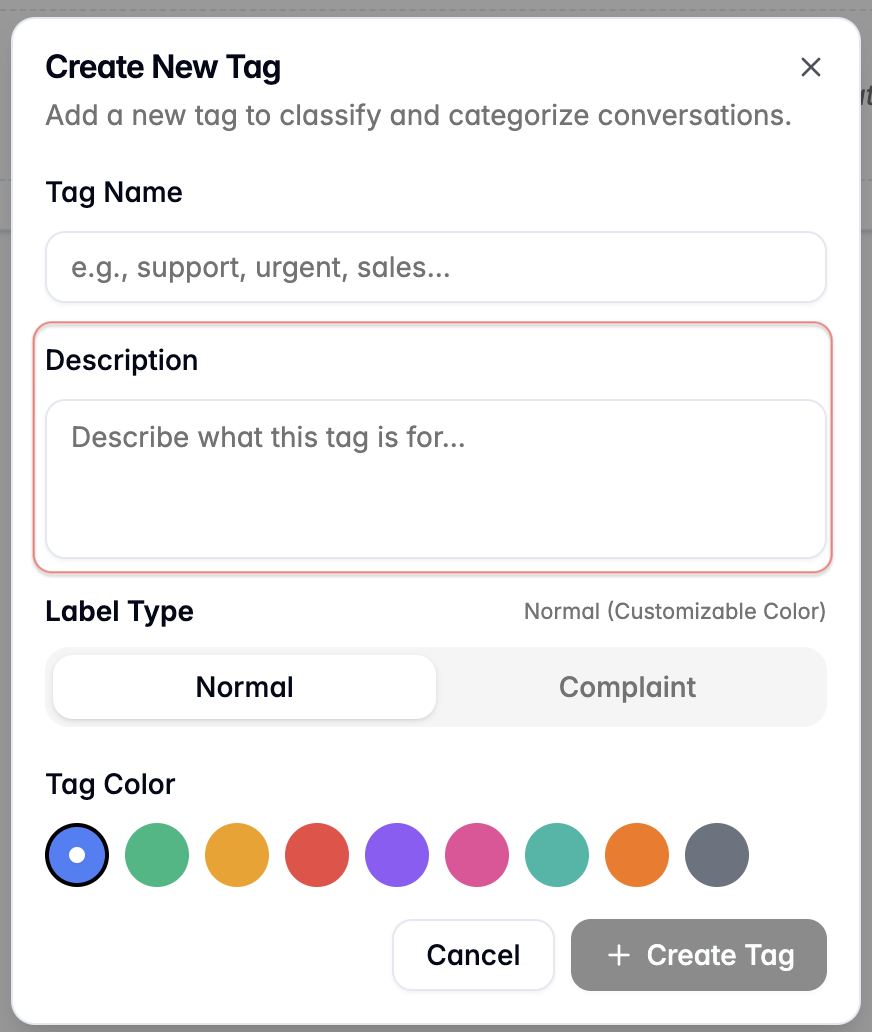
#### How to Create a New Tag
{% stepper %}
{% step %}
Select **Create New Tag**.
{% endstep %}
{% step %}
Enter a clear and recognizable title in the **Tag Name** field.
{% endstep %}
{% step %}
Enter a brief explanation in the **Description** field to detail when agents should use this tag.
{% endstep %}
{% step %}
Choose the **Label Type** by selecting either **Normal** or **Complaint**, then selec the **Tag Color.**
{% hint style="info" %}
To ensure these urgent issues are highly visible to the team, the system automatically assigns the color red to all complaint tags.
{% endhint %}
{% endstep %}
{% step %}
Select **Create Tag** to save your new tag, or select **Cancel** to discard the changes.
{% endstep %}
{% endstepper %}
#### Viewing Existing Tags
Once a tag is created, it will appear in the system under the **Existing Tags** section. To help with organization, the system automatically divides your active labels into two distinct lists: **Complaint Tags** and **Normal Tags**.
#### How to Edit an Existing Tag
{% stepper %}
{% step %}
Locate the specific tag you wish to modify under the **Existing Tags** list. Select the **Pen** icon next to the tag to open the editing menu.
{% endstep %}
{% step %}
Update the Name, Description, Label Type or Color as needed. Select **Save** to apply or select **Cancel** to discard.
{% endstep %}
{% endstepper %}
#### How to Delete a Tag
{% stepper %}
{% step %}
Locate the specific tag you wish to remove under the **Existing Tags** list. Select the **Bin** icon next to the tag. A confirmation window will appear.
{% endstep %}
{% step %}
Select **Delete** to confirm the removal, or select **Cancel** to keep the tag.
{% hint style="warning" %}
Deleting a tag is a permanent action that cannot be undone. Once deleted, the tag will be immediately removed from all historical and active conversations it was previously attached to.
{% endhint %}