> For the complete documentation index, see [llms.txt](https://chatlyst.gitbook.io/chatlyst-user-guide/llms.txt). Markdown versions of documentation pages are available by appending `.md` to page URLs; this page is available as [Markdown](https://chatlyst.gitbook.io/chatlyst-user-guide/dashboard/dashboard.md).
# Dashboard
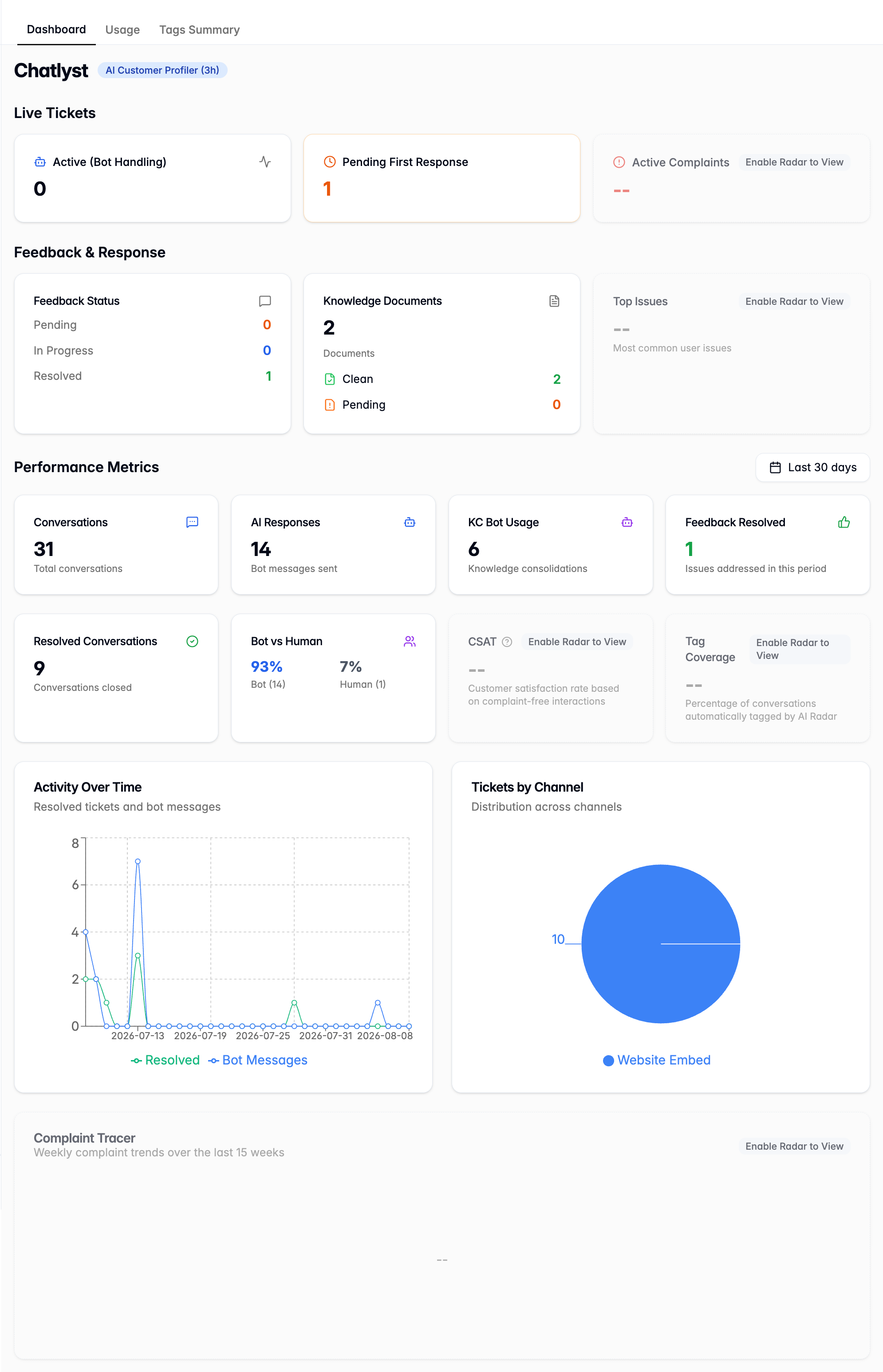
This section explains what is shown on the Dashboard and how to use each section to review live tickets, feedback, and performance metrics.
### Dashboard Layout
The Dashboard provides a high-level view of:
* [Live Tickets](#live-tickets)
* [Feedback & Responses](#feedback-and-response)
* [Performance Metrics](#performance-metrics)
{% hint style="info" %}
Navigation tab — Located in the top-left corner of the page to switch between [Dashboard](/chatlyst-user-guide/dashboard/dashboard.md) ,[Usage](/chatlyst-user-guide/dashboard/usage.md) and [Tag Summary](/chatlyst-user-guide/dashboard/tags-summary.md).

{% endhint %}
***
### Active AI Features
A visual tag located next to the company name displays which AI automation tools are currently active on the account.
### Live Tickets
The Live Tickets dashboard allows users to monitor and review customer conversations (tickets) that require immediate attention. To help organize the daily workflow, the dashboard is divided into three distinct tabs based on the current status of the conversation.
#### **Active (Bot Handling)**
This tab displays customer conversations that are currently being managed by the automated bot.
**How to use this tab:**
1. Select the **Active (Bot Handling)** tab to open [Chat](/chatlyst-user-guide/chat/chat.md).
2. Review the ongoing interactions listed in the **Bot category** to monitor how the bot is assisting customers.
#### **Pending First Response**
This tab displays conversations that have been transferred from the automated bot and are currently waiting for a live human agent to send an initial reply.
**How to use this tab:**
1. Select the **Pending First Response** tab to open the [Chat](/chatlyst-user-guide/chat/chat.md).
2. Review the customer inquiries listed in the **Unassigned category** to claim a conversation and respond to the waiting customer.
#### **Active Complaints**
This tab displays conversations that the system has flagged with a complaint tag.
{% hint style="info" %}
**Requirement:** To unlock and view this metric, the [Chatlyst Radar](/chatlyst-user-guide/settings/conversation-tags.md) feature must be enabled in the system settings.
{% endhint %}
**How to use this tab:**
1. Select the **Active Complaints** tab to open the [Tags Summary](/chatlyst-user-guide/dashboard/tags-summary.md).
2. Review the flagged conversations within the tagged conversations list. Refer to the [Tags Summary](/chatlyst-user-guide/dashboard/tags-summary.md) guide for more details.
Chatlyst Radar Inactive
Chatlyst Radar Active
***
### Feedback & Response
The Feedback & Response dashboard allows users to track the progress of system feedback and monitor the health of knowledge documents.
#### **Feedback Status**
This section provides a summary of the feedback submitted regarding the bot's performance. Use this area to review feedbacks and improve the bot's accuracy.
**How to Manage Feedback:**
1. Select the **Feedback Status** tab to open the [Train & Test bot](/chatlyst-user-guide/train-and-test-bot/train-and-test-bot.md).
2. Review submitted feedback and complete training as needed.
#### **Knowledge Documents**
A knowledge document is a file containing business information that the bot uses to understand and answer customer questions. This tab displays the total number of uploaded documents and indicates their current status as either Clean or Pending.
**How to Manage Documents:**
1. Select the **Knowledge Documents** tab to open the [Business Knowledge](/chatlyst-user-guide/business-knowledge/business-knowledge.md).
2. Review templates and manage feedback.
#### **Top Issues**
This section highlights the three most frequently used tags and number of conversations have been tagged.
{% hint style="info" %}
**Requirement:** To unlock and view this metric, the [Chatlyst Radar](/chatlyst-user-guide/settings/conversation-tags.md) feature must be enabled in the system settings.
{% endhint %}
**How to Review Top Issues:**
1. Select the **Top Issues** tab to open the [Tags Summary](/chatlyst-user-guide/dashboard/tags-summary.md).
2. Review the specific conversations linked to these tags to understand the root causes of the customer concerns. Refer to the [Tags Summary](/chatlyst-user-guide/dashboard/tags-summary.md) guide for more details.
Chatlyst Radar Inactive
Chatlyst Radar Active
***
### Performance Metrics
The Performance Metrics dashboard is a centralized workspace used to review system activity, track customer trends, and monitor the overall efficiency of the support team.
{% hint style="info" %}
All data and metrics displayed in this section update automatically based on the specific date range selected.
{% endhint %}
#### Adjusting the Date Range
Use the Date Range tool to control the specific time period shown across all charts and totals on the dashboard.
{% stepper %}
{% step %}
Locate the **Date Range** selector in the top-right corner of the screen.
{% endstep %}
{% step %}
Select the desired dates. The dashboard will immediately update to display the relevant data.
{% endstep %}
{% endstepper %}
#### **Conversations**
Displays the total number of customer interactions that occurred.
#### **AI Responses**
Displays the total number of messages sent by the automated bot.
#### **KC Bot Usage**
Displays the total number of times Knowledge Consolidation was used.
#### **Feedback Resolved**
Displays the total number of bot training feedback items that were reviewed and completed. Selecting this tab automatically redirects to the [Train & Test bot](/chatlyst-user-guide/train-and-test-bot/train-and-test-bot.md).
#### **Resolved Conversations**
Displays the total number of customer interactions that were successfully closed or completed.
#### **Bot vs Human**
Displays a ratio comparing the number of conversations managed entirely by the automated bot against those handled by human support agents.
### **Quality and Tagging Metrics**
This following mertics track customer satisfaction and how well conversations are being categorized:
#### **CSAT**
Displays a percentage representing overall customer satisfaction. This score is calculated by taking the number of conversations without any complaint tags and dividing it by the total number of conversations. Selecting this tab automatically redirects to the [Tags Summary](/chatlyst-user-guide/dashboard/tags-summary.md) for a detailed review of customer issues.
{% hint style="info" %}
**Requirement:** To unlock and view this metric, the [Chatlyst Radar](/chatlyst-user-guide/settings/conversation-tags.md) feature must be enabled in the system settings.
{% endhint %}
Chatlyst Radar Inactive
Chatlyst Radar Active
#### Tag Coverage
Displays the total number of conversations that have been assigned at least one tag. Select this metric to redirect to the [Tags Summary](/chatlyst-user-guide/dashboard/tags-summary.md) for further review.
{% hint style="info" %}
**Requirement:** To unlock and view this metric, the [Chatlyst Radar](/chatlyst-user-guide/settings/conversation-tags.md) feature must be enabled in the system settings.
{% endhint %}
Chatlyst Radar Inactive
Chatlyst Radar Active
### **Performance Chart**
The Performance Charts section provides visual representations of system data. These graphs help identify trends, monitor workload, and track customer issues over time.
#### **Activity Over Time**
This chart displays the volume of completed customer interactions (resolved conversations) alongside the number of automated system replies (bot messages) during a selected time period.
{% hint style="info" %}
To view exact data values, hover the cursor over individual sections of the chart.
{% endhint %}
#### **Tickets by Channel**
This chart breaks down the distribution of tickets across all active channels.
{% hint style="info" %}
To view exact data values, hover the cursor over individual sections of the chart.

{% endhint %}
#### **Complaint Tracer**
This line chart tracks the frequency of flagged customer issues over a continuous 15-week period. The chart plots one consolidated data point for each week.
{% hint style="info" %}
**Requirement:** To unlock and view this metric, the [Chatlyst Radar](/chatlyst-user-guide/settings/conversation-tags.md) feature must be enabled in the system settings.
{% endhint %}
Chatlyst Radar Inactive
Chatlyst Radar Active
{% hint style="info" %}
To view exact data values, hover the cursor over individual sections of the chart.

{% endhint %}


 {% endhint %}
#### **Tickets by Channel**
This chart breaks down the distribution of tickets across all active channels.
{% endhint %}
#### **Tickets by Channel**
This chart breaks down the distribution of tickets across all active channels.


