> For the complete documentation index, see [llms.txt](https://chatlyst.gitbook.io/chatlyst-user-guide/llms.txt). Markdown versions of documentation pages are available by appending `.md` to page URLs; this page is available as [Markdown](https://chatlyst.gitbook.io/chatlyst-user-guide/chat/thread-list.md).
# Thread List
Use the Thread List to find and review conversations quickly.
## Thread List Functions
Thread List functions help users quickly locate, filter, and review conversations without losing context.
### Find a Conversation
Enter keywords in the **Search Bar** to locate a specific conversation.
***
### Conversation Routing
Conversation Routing group threads into high-level categories. Conversation Routing let users switch between categories to review the right set of conversations. Please refer [Conversation Routing](/chatlyst-user-guide/chat/conversation-routing-and-statuses.md#conversation-labels) guide for more details.
***
### Filters
Users can narrow down the conversation using four primary filter types:
* [Status Filter](#status-filters)
* [Inbound Channels Filter](#inbound-channels-filter)
* [Conversation Tags Filter](#inbound-channels-filter)
* [Date Range](#date-range)
#### Status Filters
Sorts conversations by their current [status](/chatlyst-user-guide/chat/conversation-routing-and-statuses.md#conversation-statuses).
**How to Filter by Statuses:**
{% stepper %}
{% step %}
Locate the filter menu and select **All Statuses**.
{% endstep %}
{% step %}
1. Open the dropdown menu to view the available options and select the status or statuses to apply the filter.
2. Once the selection is made, the thread list will automatically update to show only the results that match the chosen statuses.
{% hint style="info" %}
Multiple statuses can be selected at the same time to view chats from several statuses at once.
{% endhint %}
{% endstep %}
{% endstepper %}
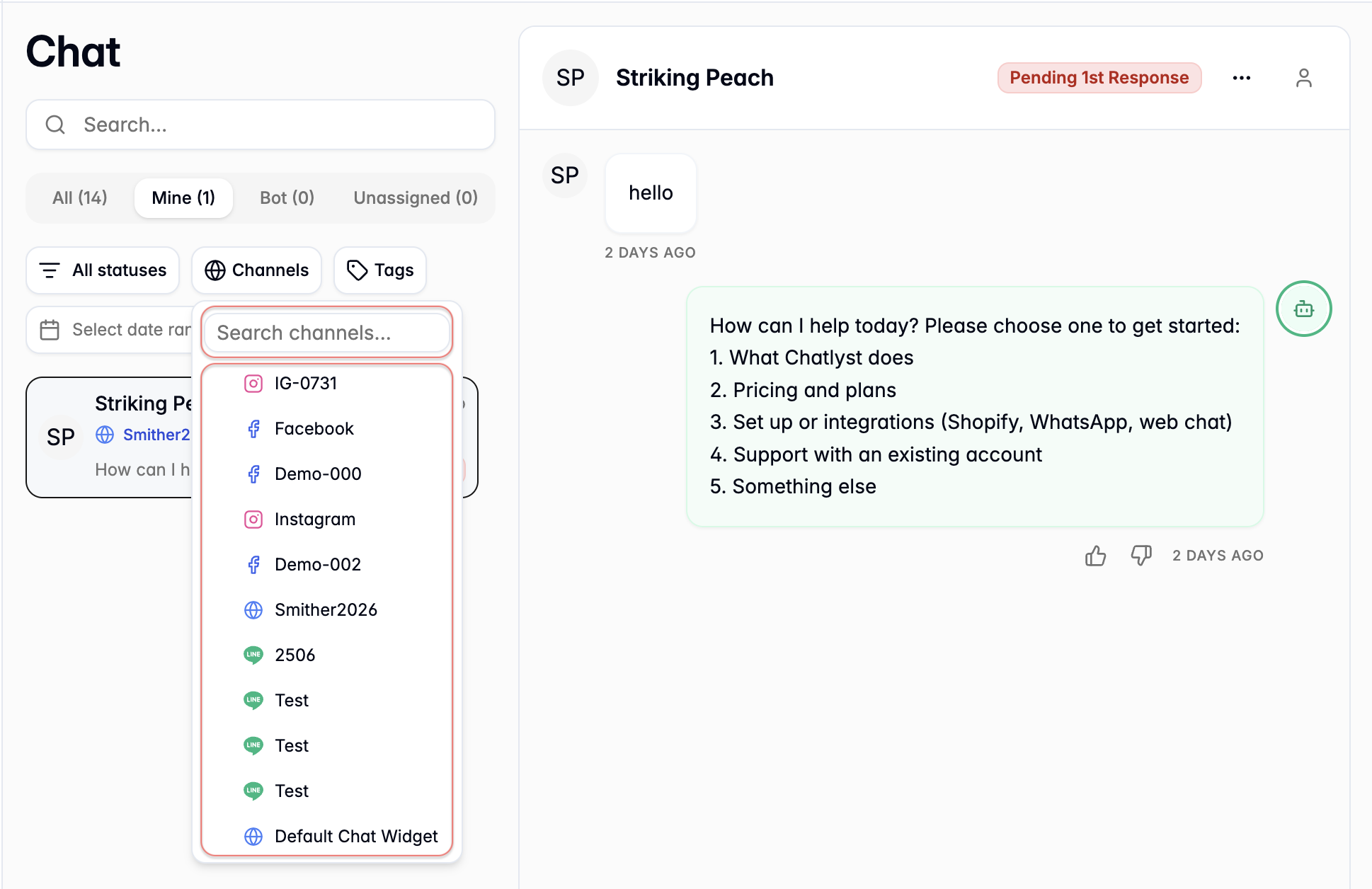
#### Inbound Channels Filter
Sorts conversations by the original source platform the customer used.
**How to Filter by Channels:**
{% stepper %}
{% step %}
Locate the filter menu and select **Channels**.
{% endstep %}
{% step %}
1. Open the dropdown menu to view the available options.
2. Enter a keyword into the search bar to quickly locate a specific channel, or manually scroll through the dropdown list to find the desired option.
3. Select the channel or channels to apply the filter. Once the selection is made, the thread list will automatically update to show only the results that match the chosen channels.
{% hint style="info" %}
Multiple channels can be selected at the same time to view chats from several sources at once.
{% endhint %}
{% endstep %}
{% endstepper %}
#### Tags Filter
Sorts conversations by applied tags.
{% hint style="info" %}
The Tags filter is only visible and available to use if there are active tags already created within the system. For detailed instructions on how to create and manage these labels, please refer to the [Conversation Tags](/chatlyst-user-guide/settings/conversation-tags.md#conversation-tags) guide.
{% endhint %}
**How to Filter by Tags:**
{% stepper %}
{% step %}
Locate the filter menu and select **Tags**.
{% endstep %}
{% step %}
1. Open the dropdown menu to view all existing tags.
2. Enter a keyword into the search bar to quickly locate a specific tag, or manually scroll through the dropdown list to find the correct option.
3. Select the tag or tags to apply the filter. Once the selection is made, the thread list will automatically update to show only the results that match the chosen tags.
{% hint style="info" %}
Multiple tags can be selected at the same time to expand the search results.
{% endhint %}
{% endstep %}
{% endstepper %}
### Date Range
Date Range limits the thread list to a specific time period (day, week, or custom dates).
**How to Filter by Date Range:**
{% stepper %}
{% step %}
Locate the filter menu and select **Select date range**.
{% endstep %}
{% step %}
Select a date range using either:
* The calendar view (for exact start and end dates)
* Preset ranges on the left (for common time periods)
* Once the selection is made, the thread list will automatically update to show only the results that match the choses time period.
{% endstep %}
{% step %}
Remove the filter when it is no longer needed. The filter stays active until it is turned off, which can make it look like conversations are missing later.
{% endstep %}
{% endstepper %}
***
## Open and Review a conversation
1. Select a conversation in the Thread List.
2. Review the full message history in the Conversation Panel.
3. Reply directly in the selected thread if needed.
In the Thread List, key details are visible at a glance, including:
* Time of the most recent response
* Current conversation status
{% hint style="info" %}
Conversation priority in the Thread List follows this order (highest to lowest): Pending 1st Response > Previously Snoozed > Pending Response > Open > Bot Handling > Snoozed > Closed.
{% endhint %}